Quick Start
Just 3 steps to start using PicHound for bulk downloading web images.
Step 1: Open PicHound
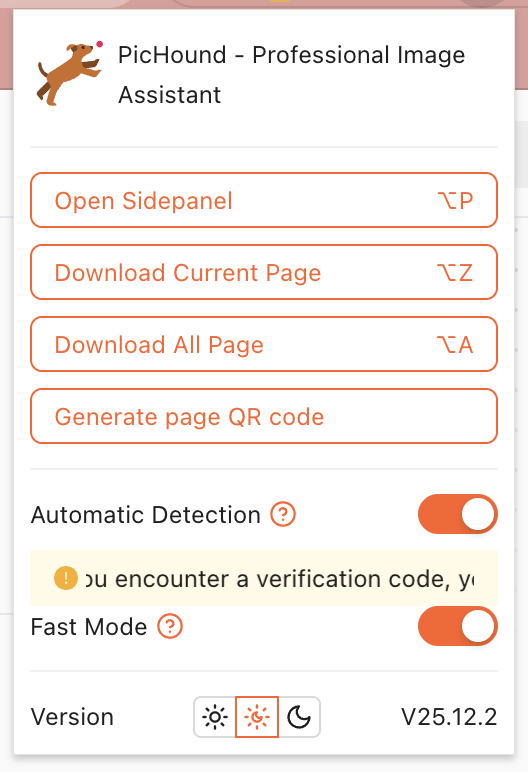
Click the PicHound icon in the browser toolbar, or use a keyboard shortcut to open the sidebar.
Ways to open:
- 🖱️ Click toolbar icon → Select “Sidebar” or “Popup Window”
- ⌨️
Alt+Popens the sidebar,Alt+Zquick-downloads the current page (customizable in extension settings) - 🔗 Right-click on webpage → Select “PicHound” → “Download images on this page”
💡 Not installed yet? Get the Free version first.
Step 2: Collect Images
After opening the target webpage, PicHound will automatically sniff page images.
Collection Tips
| Feature | Description |
|---|---|
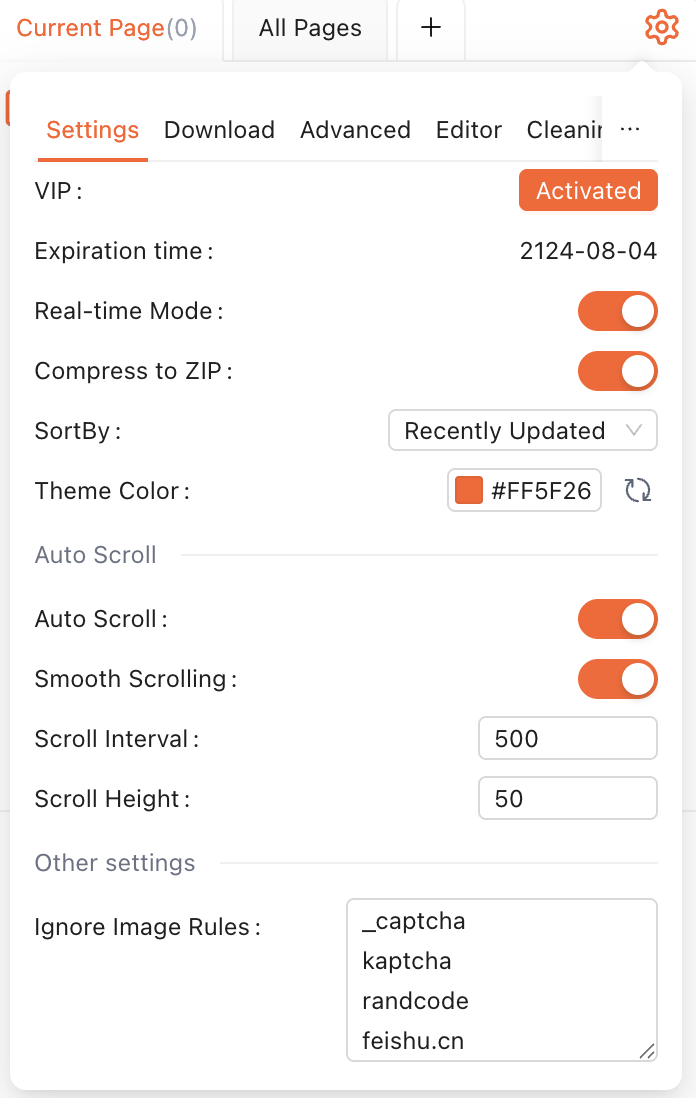
| Real-time Mode | Automatically monitors page image changes, collects newly loaded images in real-time |
| Turbo Mode | Loads images directly in current window context, significantly improves collection speed |
| Auto Scroll | Automatically scrolls page to load lazy-loaded images |
| Follow Tab | Automatically follows currently active browser tab |
Filter Images
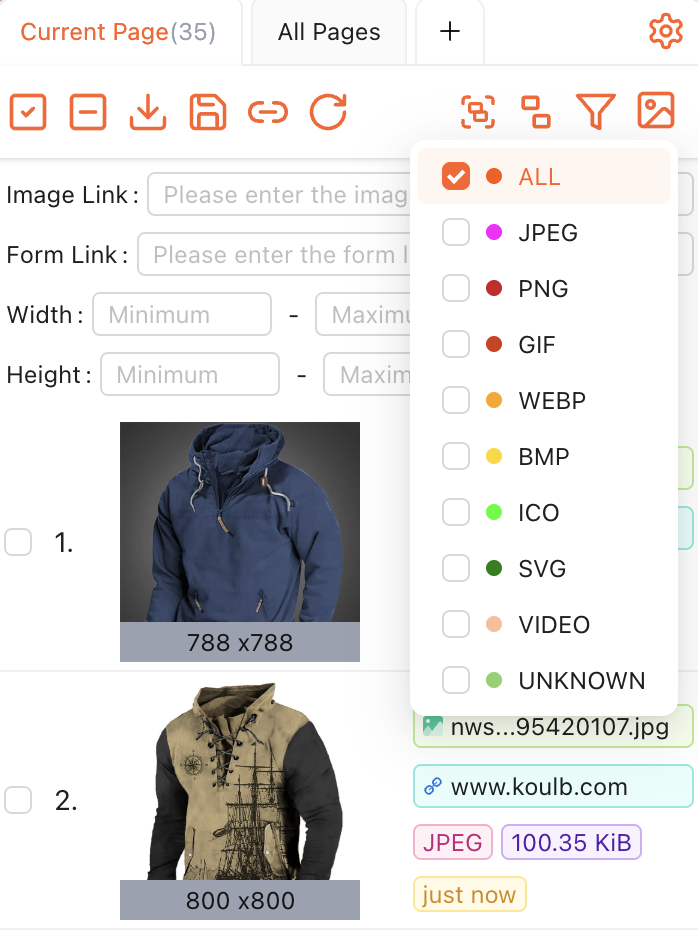
Use filters to screen desired images:
- Type Filter — JPG / PNG / GIF / WEBP / SVG / AVIF
- Size Filter — Set minimum/maximum width and height to skip tiny icons
- Ignore Rules — Regex matching to exclude logos, ads, captchas, etc.
Step 3: Select & Download
- Select Images — Click to select, or use “Select All”, “Invert Selection”, “Shift Range Select”
- Click Download — Save to local
Download Options
| Option | Description |
|---|---|
| ZIP Package | Compress and download as ZIP file, ideal for batch archiving |
| Individual Download | Save each as separate file |
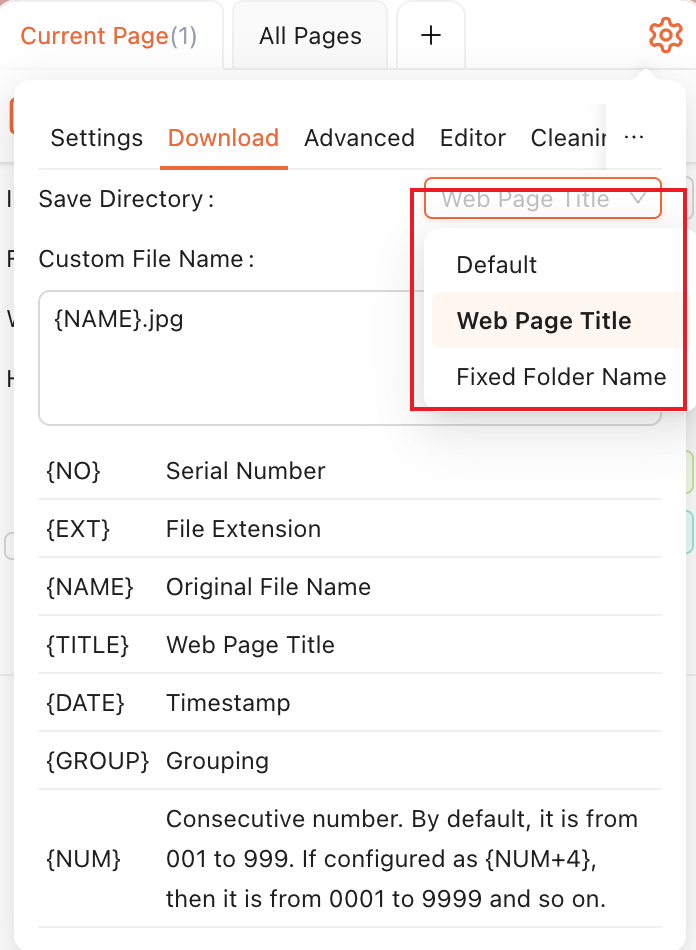
| Custom Filename | Supports variables: {NUM} {NAME} {TITLE} {TIMESTAMP} {EXT} {GROUP} |
| Save Directory | Fixed folder name or auto-categorize by webpage title |
Advanced Features
After mastering the basics, explore more advanced features:
🎨 Image Processing
- Image Editing — Adjust blur, brightness, contrast
- Background Removal — AI-powered RMBG-1.4 model for one-click cutout
- Format Conversion — Convert between JPEG / PNG / WEBP / AVIF and more
- Extract Dominant Colors — Analyze image primary colors
📁 Image Management
- Image Library — Explore, favorites, archive, albums, trash categorized management
- Import/Export — Image library data backup and restore
- Auto Cleanup — Set days for automatic old image cleanup
🔌 Advanced Features
- Plugin Scripts — JSON scripts for custom image grouping rules, with 50+ built-in e-commerce platform scripts
- Reverse Image Search — Integrated Google / Yandex / TinEye search engines
- Chrome Sync — Auto-sync configuration to Chrome account
Next Steps
Last updated