Frequently Asked Questions
New to PicHound? Start with the Free version to experience the core features. Already a Lifetime Pro user? Here are the most common questions and solutions.
1️⃣ What’s the difference between Free and Lifetime Pro?
Collecting, filtering, and preview are free. Downloads of 10 images or fewer are free and do not use the daily quota. Larger batches are limited to 12 per day on Free. Smart filtering, ZIP export, format conversion, local editing, and AI background removal are included and are not counted against the download quota.
Lifetime Pro is a one-time payment of $13.99 (early-bird) and removes the large-batch daily cap, plus priority email support, custom feature requests, and free lifetime updates.
💡 Tip: Try the Free version first to make sure PicHound fits your workflow, then upgrade when you’re ready — zero risk.
2️⃣ Can’t find images on the page?
Try the following:
- Enable “Turbo Mode” or “Real-time Mode”
- Use “Auto Scroll” to load lazy-loaded images
- Check if filter conditions are too strict (size, type, ignore rules, etc.)
- Some sites use CSS background images — check the “Image Layer” settings
- Make sure the images are already visible and loaded on the page (PicHound does not fetch hidden or unloaded images)
3️⃣ Downloaded image filenames are garbled?
Go to Settings → Download → Custom Filename and use a template:
{NUM}_{NAME}.{EXT}Or use the webpage title:
{TITLE}_{NUM}.{EXT}Supported variables:
{NUM}— Sequence number{EXT}— Extension{NAME}— Original filename{TITLE}— Webpage title{TIMESTAMP}— Timestamp{GROUP}— Group name
4️⃣ How to download images that require login?
- First, log in to the target website normally in your browser
- PicHound will reuse the browser’s login state and cookies
- If you encounter captcha, pause sniffing and complete verification first
- Reopen the PicHound sidebar; images will be collected automatically
5️⃣ Difference between Turbo Mode and Normal Mode?
| Mode | Description |
|---|---|
| Turbo Mode | Loads images directly in the current window context, faster; some sites may be incompatible due to CSP/cross-origin restrictions |
| Normal Mode | Collects via background script, better compatibility but slightly slower |
Recommendation: Use Turbo Mode first, switch to Normal Mode if you encounter issues.
6️⃣ Background removal feature not working?
- First use requires loading the AI model (~100MB), please wait patiently
- Ensure your network connection is stable (after first download, it works offline)
- Try switching to the “Cross-browser version” for better compatibility
- Background removal is based on the RMBG-1.4 model; fine hair, transparent objects, and complex backgrounds may be imperfect
7️⃣ How to use plugin scripts?
- Go to Settings → Advanced → Plugins
- Select preset scripts or add custom JSON scripts
- Scripts will automatically group images for matching URLs
PicHound has 50+ built-in smart scripts for mainstream platforms:
| Domestic Platforms | International Platforms |
|---|---|
| Taobao, Tmall, JD | Amazon, Ebay, AliExpress |
| Pinduoduo, 1688, Vipshop | Shopee, Lazada, Temu |
| Suning, Dangdang, Youzan | DHgate, SHEIN, iHerb |
| Xiaohongshu, Douyin | Mercadolibre, Qoo10 |
For detailed script configuration, refer to the Smart Scripts documentation.
8️⃣ VIP activation failed?
- Check if the activation code is entered correctly (mind case and spaces)
- Each activation code is limited to 3 activations
- If you’ve used all activations, free up a slot via Device Unbind
- If issues persist, send your purchase proof to contact@pichound.app
9️⃣ How to sequential download images from multiple pages?
- Open multiple target webpage tabs
- In PicHound, select “All Pages”
- Use filters to screen, then sequential download
- Enable “Follow Tab” to automatically follow the currently active browser tab
🔟 How to filter captcha?
Due to crawling strategies, image captchas on some websites may become invalid.
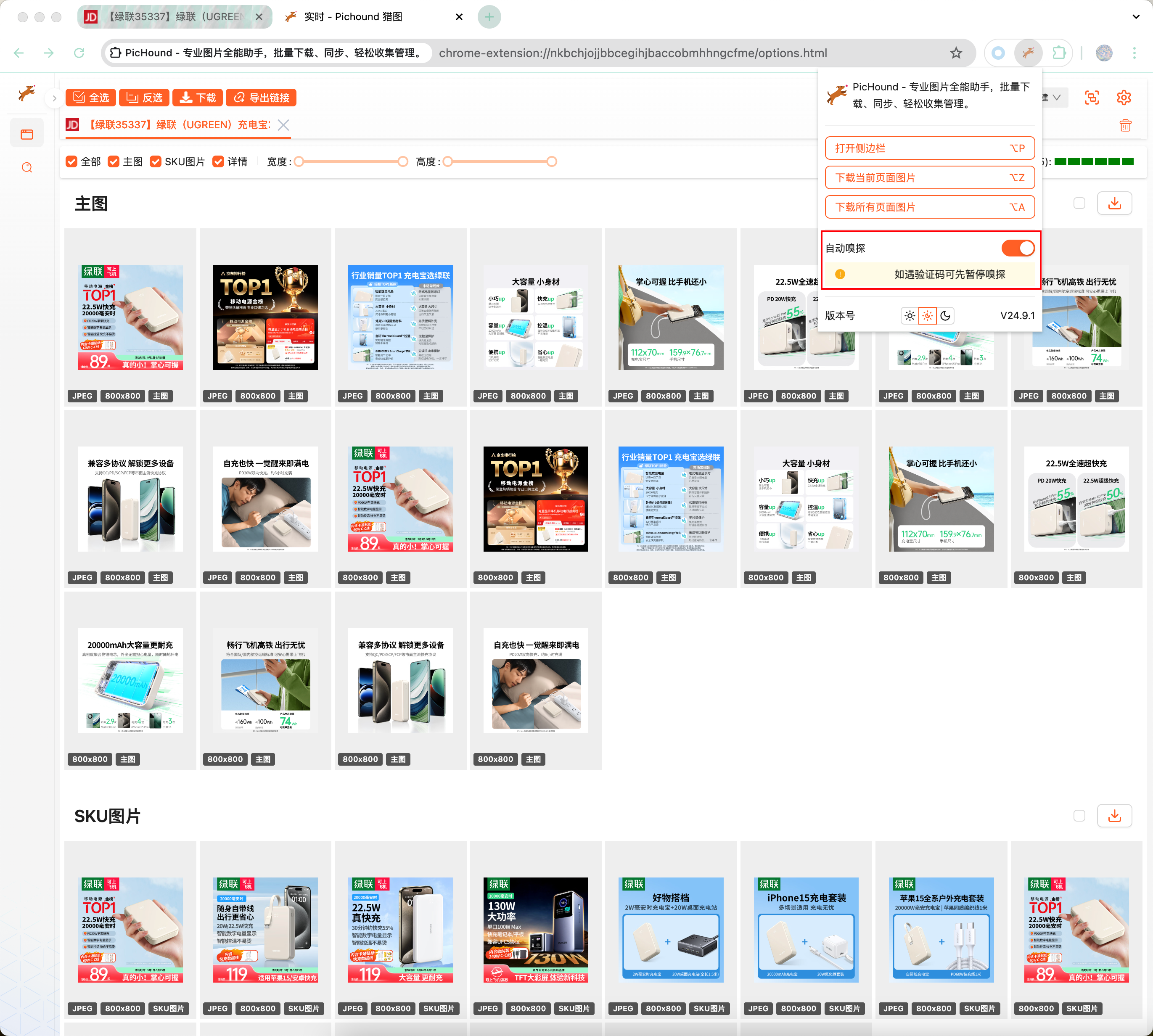
During the verification phase, first turn off the automatic sniffing function, then turn it back on after successful verification.
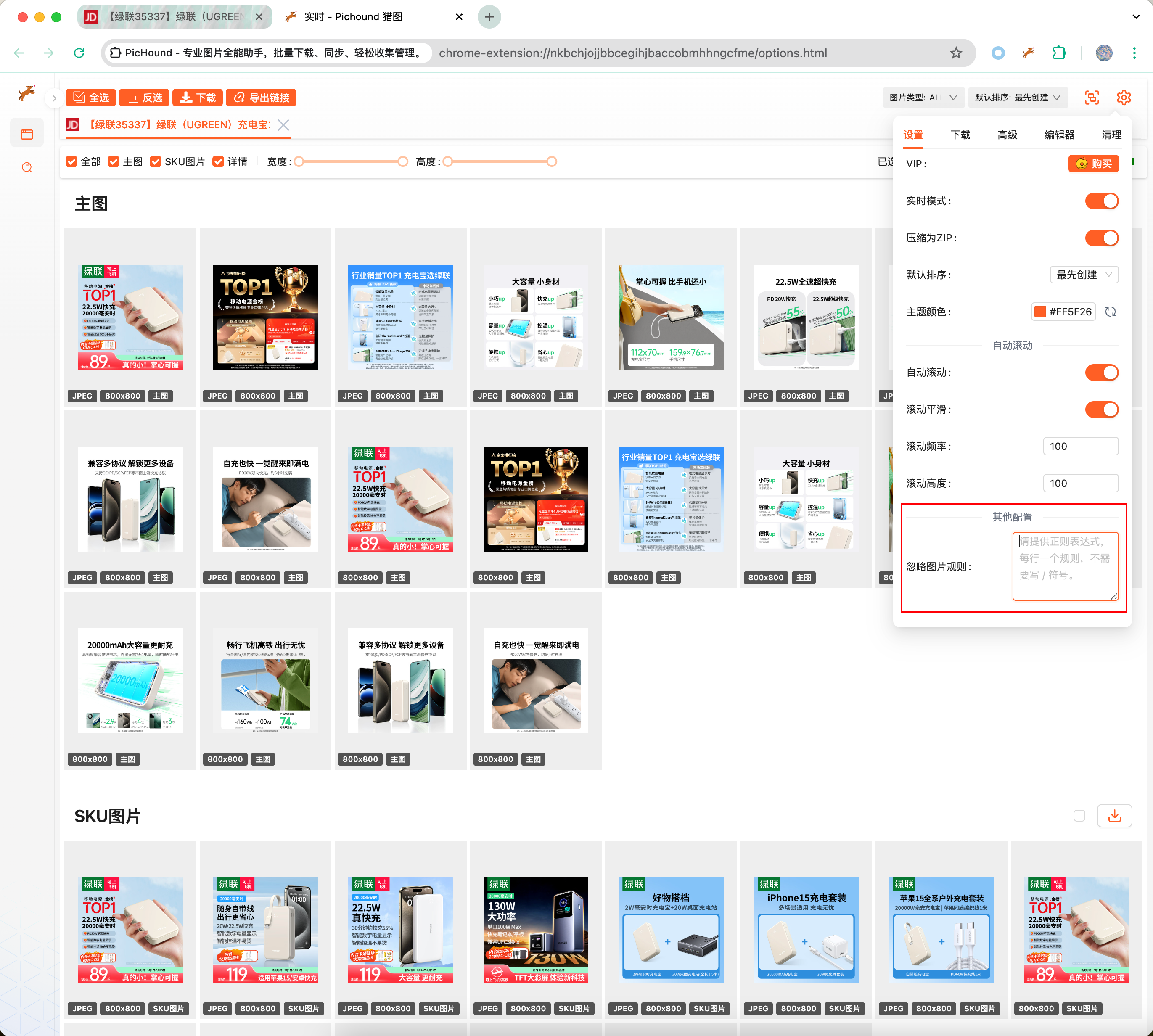
Right-click the captcha, get its URL, then select part of the captcha’s keywords and fill them into the “Ignore Image Rules”.
1️⃣1️⃣ How to update the extension?
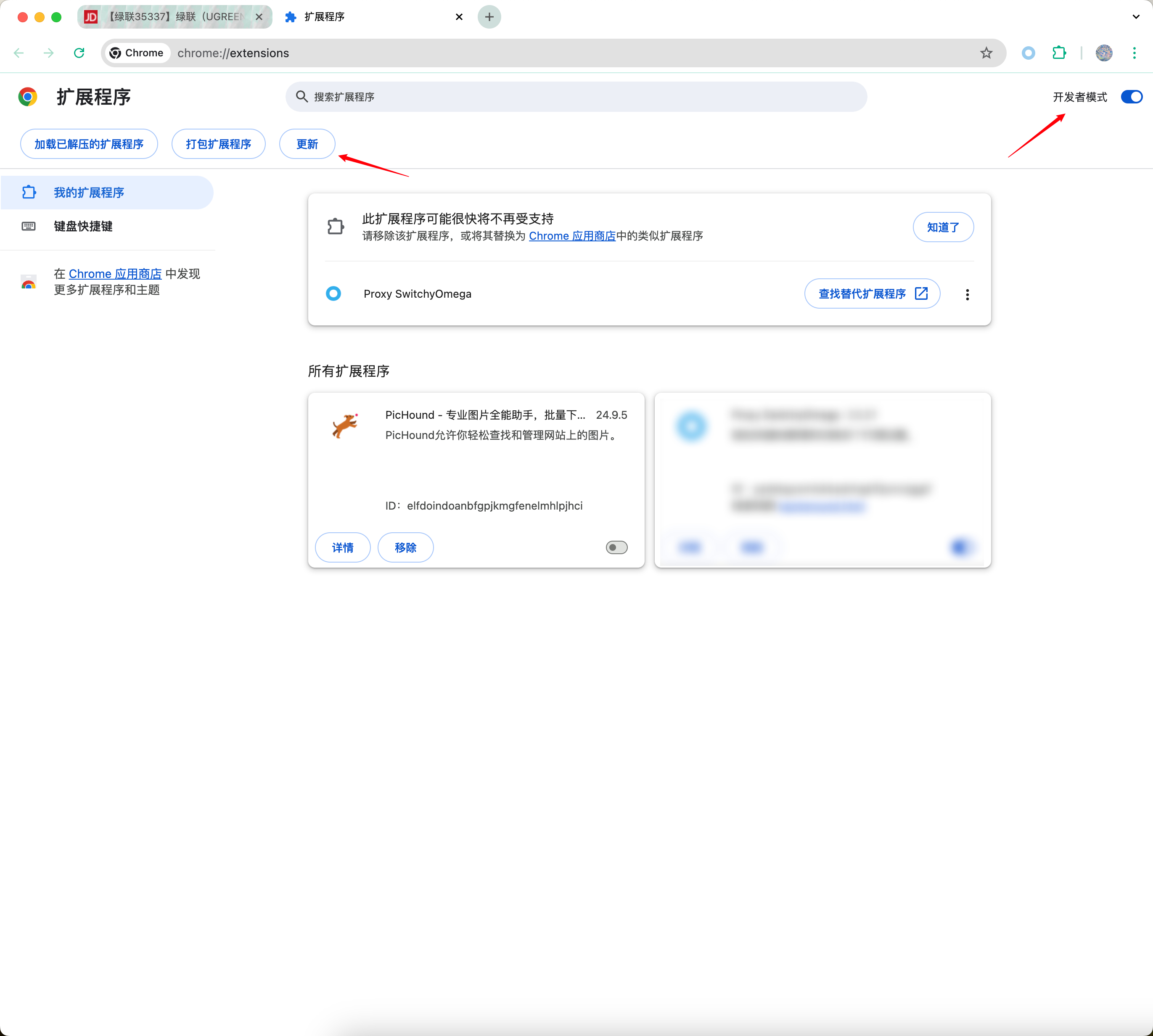
If you installed the extension from the Web Store, it will update automatically. If you need to update manually, visit chrome://extensions/, enable developer mode, and click the “Update” button.
1️⃣2️⃣ Does PicHound collect my data?
No. All image detection, filtering, editing, and saving happens locally in your browser. We do not collect images, browsing history, or page content. The only data transmitted is license verification (device ID and license key). Your privacy is fully protected.
1️⃣3️⃣ What should I know before purchasing?
PicHound only saves images that are already visible and loaded on the page. It does not bypass login walls, paywalls, watermarks, or any technical protection. Please make sure you have the right to save and use any images, and comply with applicable laws and regulations.
Because browser extensions are affected by target-site policies, platform policies, and local laws, we cannot guarantee that every feature will work permanently on every site. This is not grounds for a refund. We recommend fully trying the Free version before purchasing Lifetime Pro.
Haven’t tried PicHound yet?
👉 Download Free or see Lifetime Pro benefits
If you have any other questions, contact us at contact@pichound.app.