Quick Start
Just 3 steps to start using PicHound for sequential downloading web images.
Step 1: Open PicHound
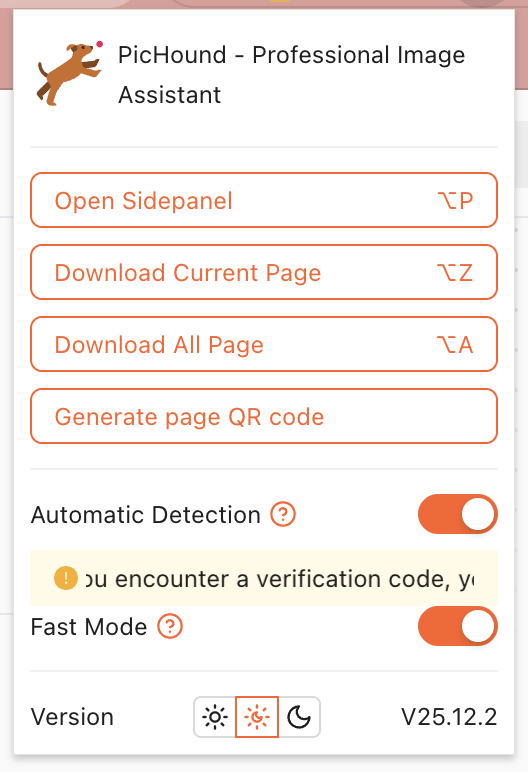
Click the PicHound icon in the browser toolbar, or use a shortcut to open the sidebar.
Ways to open:
- 🖱️ Click toolbar icon → Select “Sidebar” or “Popup Window”
- ⌨️ Keyboard shortcut (customizable in extension settings)
- 🔗 Right-click on webpage → Select “PicHound”
Step 2: Collect Images
After opening the target webpage, PicHound will automatically sniff page images.
Collection Tips
| Feature | Description |
|---|---|
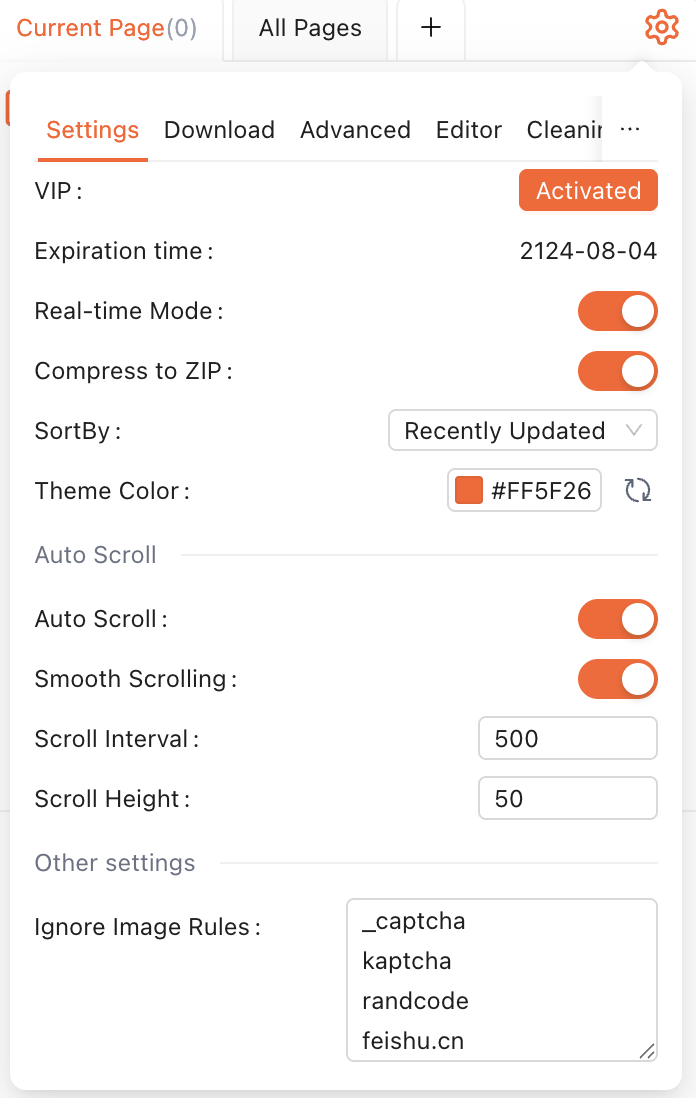
| Real-time Mode | Automatically monitors page image changes, collects newly loaded images in real-time |
| Turbo Mode | Loads images directly in current window context, significantly improves collection speed |
| Auto Scroll | Automatically scrolls page to load lazy-loaded images |
| Follow Tab | Automatically follows currently active browser tab |
Filter Images
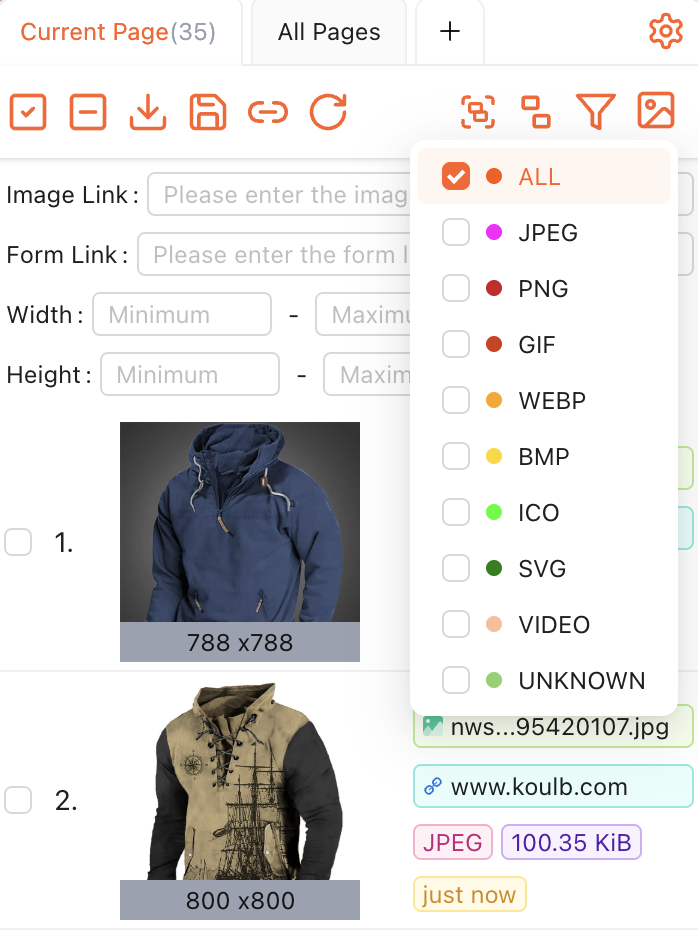
Use filters to screen desired images:
- Type Filter - JPG / PNG / GIF / WEBP / SVG
- Size Filter - Set minimum/maximum width, height
- Ignore Rules - Regex matching to ignore specific image URLs
Step 3: Select & Download
- Select Images - Click to select, or use “Select All”, “Invert Selection”, “Area Selection”
- Click Download - Sequential save to local
Download Options
| Option | Description |
|---|---|
| ZIP Package | Compress and download as ZIP file |
| Individual Download | Save each as separate file |
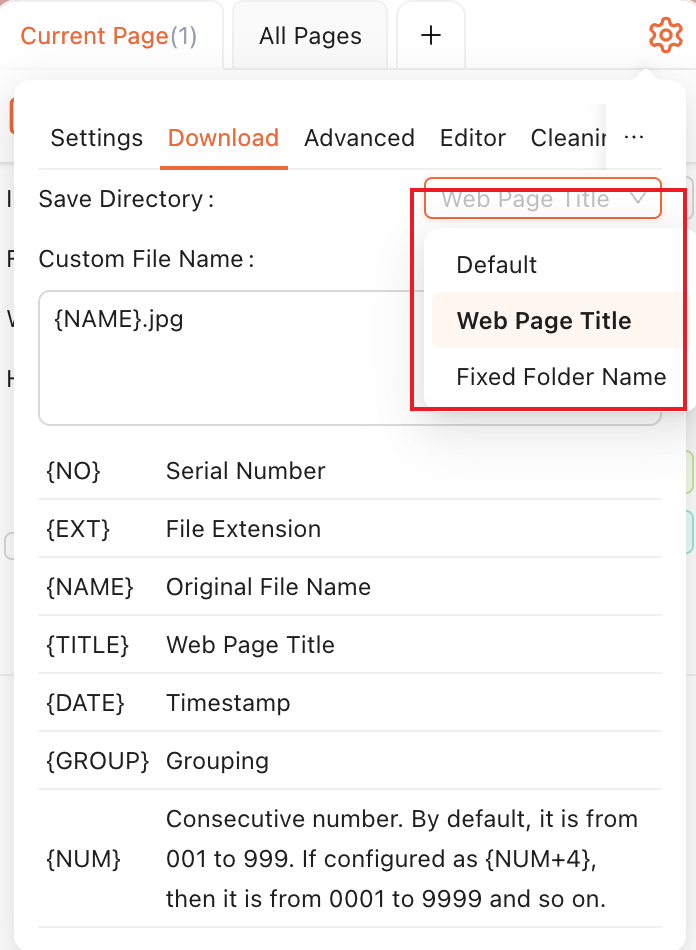
| Custom Filename | Supports variables: {NUM} {NAME} {TITLE} {TIMESTAMP} {EXT} |
| Save Directory | Fixed folder name or auto-categorize by webpage title |
Advanced Features
After mastering the basics, explore more advanced features:
🎨 Image Processing
- Image Editing - Adjust blur, brightness, contrast
- Background Removal - AI-powered RMBG-1.4 model for one-click cutout
- Format Conversion - Convert between image formats
- Extract Dominant Colors - Analyze image primary colors
📁 Image Management
- Image Library - Explore, favorites, archive, albums, trash categorized management
- Import/Export - Image library data backup and restore
- Auto Cleanup - Set days for automatic old image cleanup
🔌 Advanced Features
- Plugin Scripts - JSON scripts for custom image grouping rules, supports custom grouping rules
- Reverse Image Search - Integrated Google / Yandex / TinEye search engines
- Chrome Sync - Auto-sync configuration to Chrome account